
Task list and expenses
In addition to time entries, netTime manages personal tasks with due date and reminder (task list, ToDo) and project-related expenses with receipt and tax rate.
The task list (ToDo)
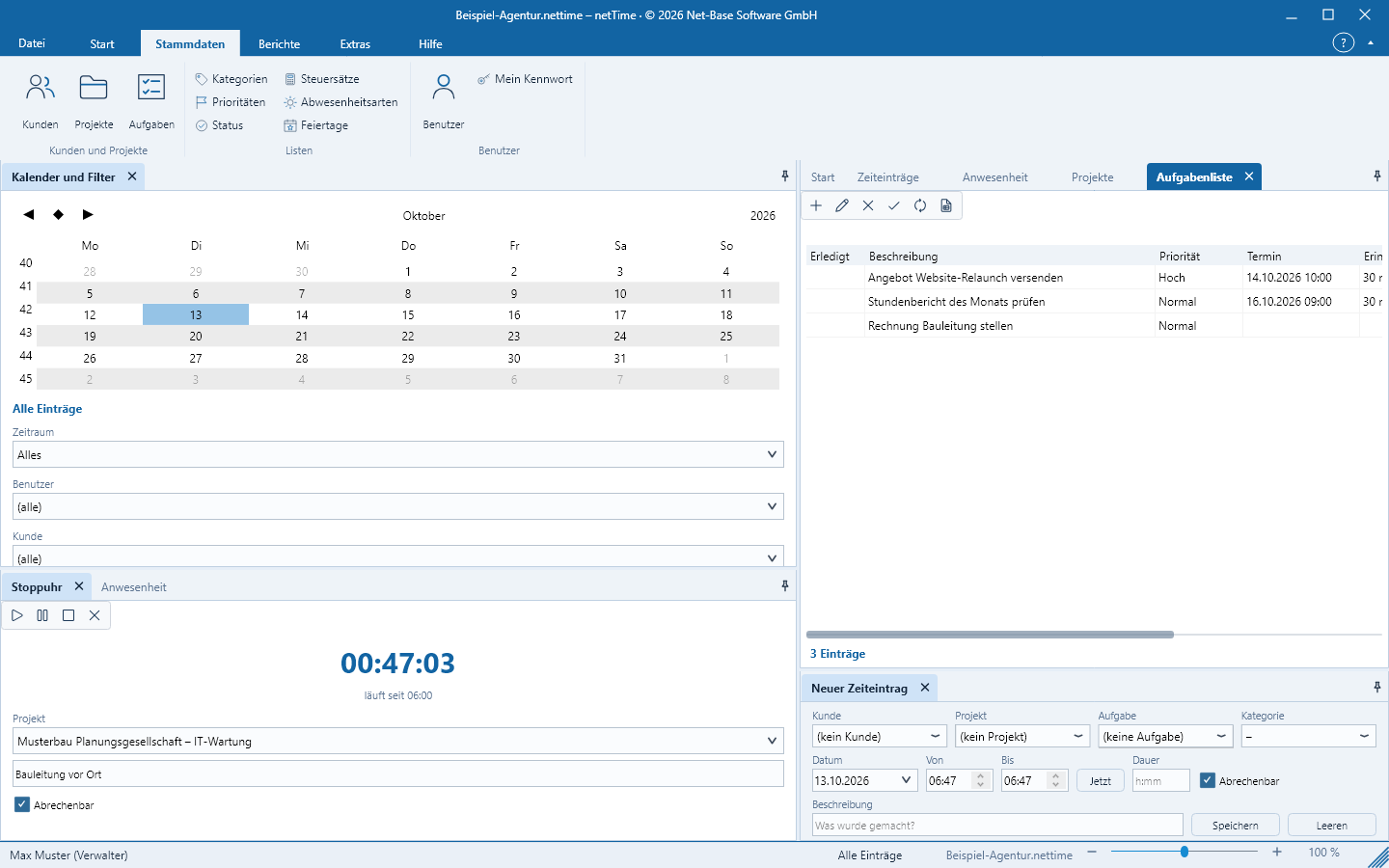
Start > View > ToDo opens the list Task list with the columns Completed, Description, Priority, Date, Reminder (lead time in minutes), Project and User. Administrators see the tasks of all users, other roles only their own. Completed tasks are hidden while the option Show completed tasks is off.
New task: Add in the list, Einfg or Start > Entries > More entries > New task (ToDo) …. Fields in the dialog New task (ToDo):
| Field | Meaning |
|---|---|
| Description | Mandatory field, for example Send offer to Beispiel GmbH |
| Priority | From the priorities list |
| User | Who the task belongs to |
| Customer, Project | Optional reference |
| Date, Time | Due date; without a date there is no reminder |
| Reminder | Enable or disable reminder |
| Lead time | 0 min, 5 min, 15 min, 30 min, 60 min or 1 day before the date |
| Completed | Checkbox with timestamp of completion |
| Note | Longer text |
Completed / open in the toolbar toggles the selected task without opening the dialog.
Reminders
While netTime is running and the file is open, it checks dates every 30 seconds. If a reminder is due, the Reminder window appears with the task description and a selection:
- Later (5 min), Later (15 min), Later (1 hour) – remind again after that interval
- Done – marks the task completed
- Do not remind again – disables the reminder for this task
One reminder is shown at a time; further due reminders follow sequentially. Reminders appear only while the program is running – netTime has no background service.
Expenses
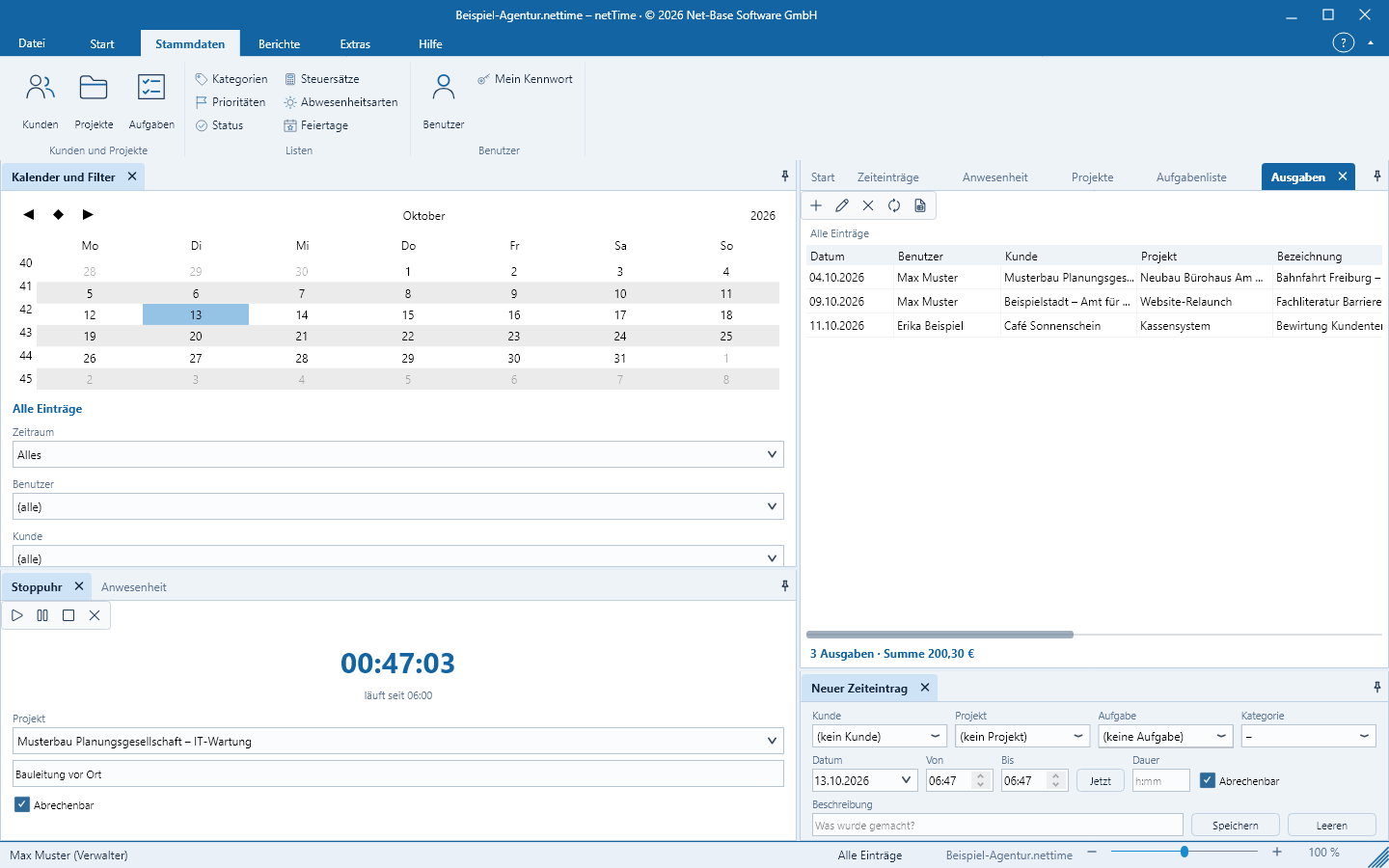
Start > View > Expenses opens the list Expenses for the selected period and filter with the columns Date, User, Customer, Project, Title, Description, Amount, Tax rate, Billable, Approved and Receipt. The summary row shows count and total, for example 3 expenses · Summe 184,90 €.
New expense: Add, Ins or Start > Entries > More entries > New expense …. Fields in the New expense dialog:
| Field | Meaning |
|---|---|
| User, Date | Who paid and when |
| Customer, Project | Assignment for billing and reports |
| Title | Required field, for example Train trip Freiburg – Stuttgart |
| Description | Additional details |
| Amount | Gross amount in the file’s currency |
| Tax rate | From the tax rates list (19%, 7%, 0% …) |
| Billable, Approved | As with time entries |
| Invoice number | Invoice with which the expense was billed |
| Receipt (filename) | Name of the receipt file, for example 2026-10-13-bahn.pdf |
| Note | Longer text |
Expenses appear in the report Reports > More lists > Expenses including totals and can be exported as CSV – see Reports and Backup, Export and Import.
Example: Erika Beispiel records on 13 October 2026 the expense specialist book of €49.90 with tax rate 7% to the project Website-Relaunch of Beispiel GmbH and enters receipt rechnung-buchhandel.pdf.