
Reports
The Reports tab generates print-ready reports from the data for the selected time range and filters. Each report opens in its own preview window, from which you can print or export.
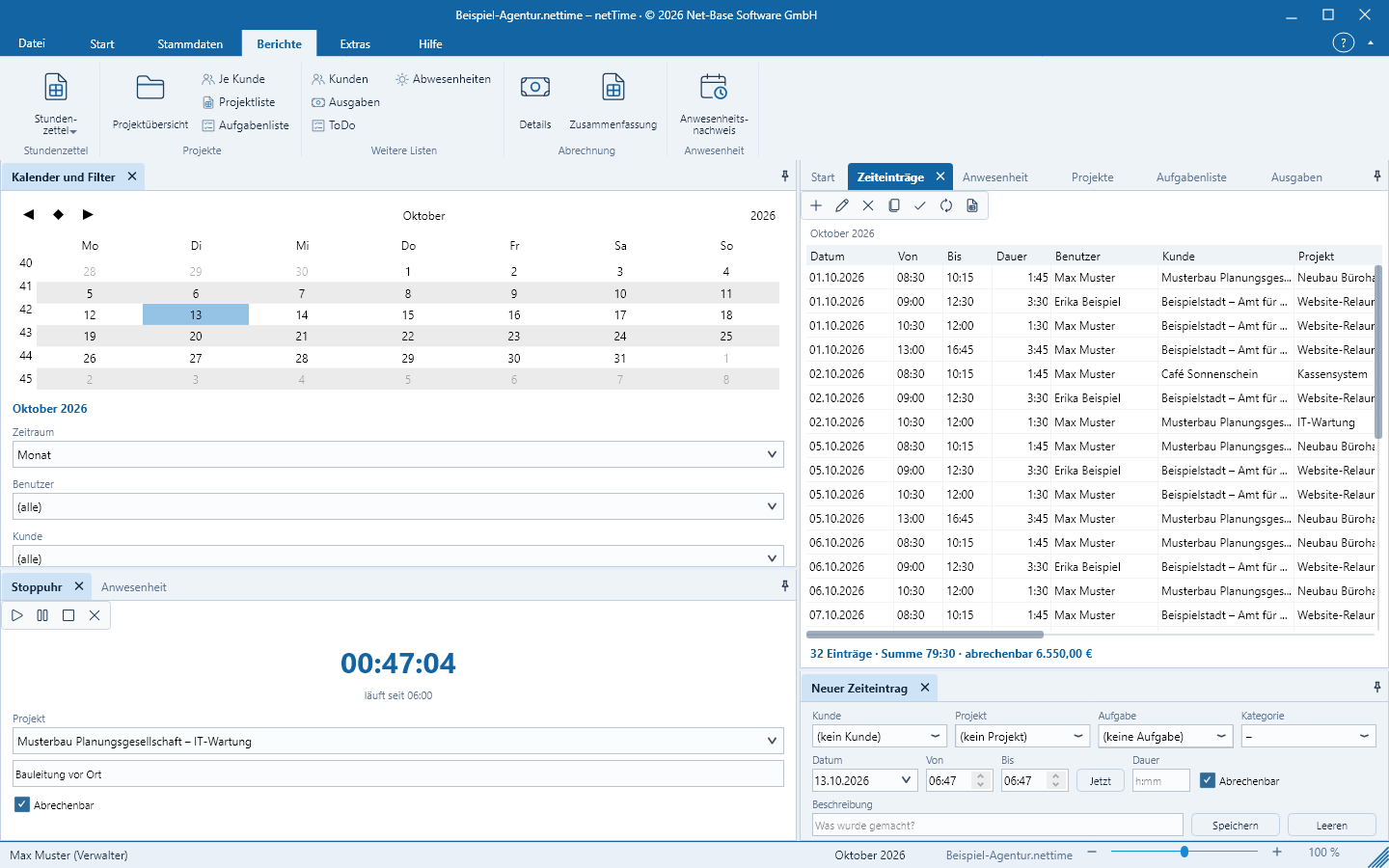
Time range and filters
Reports use the time range, the user, customer and project filters, and the search text from Calendar and filters – see Time range and filters. The time range and filters appear as a subtitle in the report header, for example October 2026 · Beispiel GmbH. Therefore select the time range and filters first, then the report.
Report types
| Group | Report | Content |
|---|---|---|
| Timesheet | Timesheet | All time entries with date, from, to, user, customer, project, task, description, hours and total |
| Timesheet per user | Grouped by user with subtotals | |
| Timesheet per customer | Grouped by customer and project | |
| Timesheet per project | Grouped by Customer – Project | |
| Blank timesheet | 28 blank lines for manual entry | |
| Projects | Project overview | For each active project: customer, status, start, budget h, hours, remaining h and amount |
| Per customer | Project overview grouped by customer | |
| Project list | Landscape: customer, project, status, start, end, budget h, hours, amount | |
| Task list | Landscape, grouped by project: task, parent, description, status, budget h | |
| Other lists | Customers | Customer list with short code, contact person, location, phone, e-mail, rate |
| Expenses | Expenses for the period with tax and amount, total | |
| ToDo | Task list with done, description, priority, due date, project, user | |
| Absences | Grouped by user: type, from, to, days, approved, note | |
| Billing | Details | Landscape: billable times only, grouped by customer and project, with rate and amount per entry, subtotals and total |
| Summary | Per project hours and amount, grouped by customer | |
| Attendance | Attendance record | Per day: arrival, departure, break, actual, expected, balance and note for a user; for time range All the current month |
Timesheet, Billing – Details and Attendance record are also available via File > Print.
The amount is derived from hours × hourly rate (entry, otherwise project, otherwise customer, otherwise user); non-billable times have an amount of 0. Hours appear in reports as a decimal number with two decimal places.
The Preview
The preview window displays the report page by page. It is not modal: you can open multiple reports side by side and continue working in netTime. The preview toolbar offers:
- Print to an installed printer
- Export as PDF, Excel (XLSX), CSV, HTML and RTF
- Page navigation and zoom
Closing the file or quitting netTime closes any open preview windows.
Report header and footer
Under File > Options > File options …, section Reports, the administrator sets:
- Company / header – appears on the right in the header of each page, for example Beispiel GmbH · Musterstraße 1 · 79108 Freiburg
- Footer – custom text on the left of the footer; if no text is specified netTime prints netTime · printed on <Datum>
- Count non-billable times in totals – affects the hours total of the time entries list
- Report title – name of the reports (default netTime)
On the right of the footer it always says Page x of y. The currency symbol for amounts comes from the option Currency symbol.
Reports without data
If the date range contains no matching entries, the report shows only the header, column headings and the total 0. Check the date range, filters and search text.
Custom report templates via the netReport-Designer are planned for a later version.