
Attendance: Arrival, Departure, Break
In addition to project times, netTime records attendance: when you arrived, when you left, how long the break was. From the bookings, the user’s target times, holidays and absences netTime calculates per day Actual, Target and Balance.
Clocking
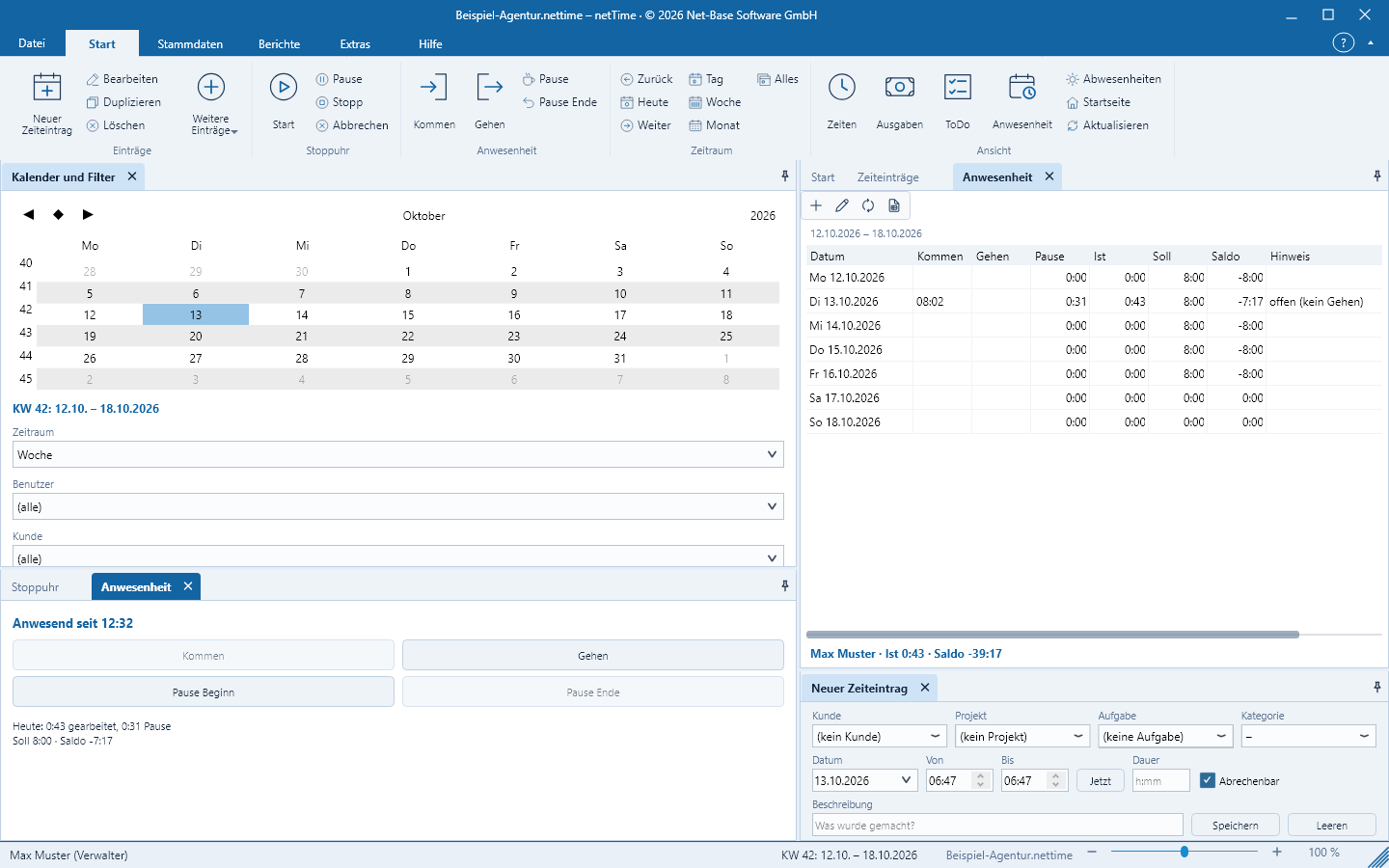
Use the buttons in the sidebar Attendance (left, tab next to the stopwatch) or on the Start tab, group Attendance:
| Button | Type of entry |
|---|---|
| Clock in | Work start |
| Clock out | Work end |
| Break / Break start | Start of a break |
| Break end | End of a break |
Each entry is saved with the current time; the status bar confirms it, for example Clock in 08:02. In the sidebar only the button that makes sense next is active: after Clock in Clock out and Break start are possible, after Break start only Break end and Clock out.
The sidebar shows the state – Not present, Present since 08:02 or On break since 12:30 – and today’s values: Today: 6:15 worked, 0:45 break, Target 8:00 · Balance -1:45 and, if applicable, the holiday.
The „Attendance“ list
Start > View > Attendance shows for each day of the selected period a row with Date, Clock in (first entry), Clock out (last entry), Break, Actual, Target, Balance and Note. The note shows the holiday, the type of absence or open (no clock out) when a day ends without a clock-out entry. The summary row names the user, the total Actual and the Balance for the period.
The list always shows exactly one user: the one selected in the filter, otherwise the logged-in user. For the period All it shows the current month up to today.
- Add missing entry (also Start > Entries > More entries > Add missing entry …) creates a forgotten entry. Fields in the Entry dialog: User, Type (Clock in, Clock out, Break start, Break end), Date, Time, Note. Retroactively added entries are marked in the file as entered by hand.
- Edit the day’s entries (double-click or
Enteron a row) opens each entry of the day in turn for correction. On a day without entries netTime reports There are no entries for this day. „Add missing entry“ creates one.
Individual entries are not deleted, but modified via Edit.
How netTime calculates
- Actual = time between Clock in and Clock out minus breaks. An open day (Clock in without Clock out) counts for the current day up to now.
- Target = the user’s scheduled time for the weekday (see Users and roles); 0 on a public holiday; 0 on a day with an absence; for a Half day half.
- Balance = Actual − Target. Negative values appear with a minus sign, for example
-1:45.
You maintain target times per user under Master data > Users, section Target time per weekday (h:mm); the default for new users is 8:00 Monday to Friday. Define public holidays under Master data > Lists > Holidays, absences under Absences.
Hours are displayed as h:mm or – with the option Show hours as decimal – as a decimal number.
Print attendance record
Reports > Attendance > Attendance record (also File > Print > Attendance record) prints the same daily list for the selected period with totals – see Reports.