
Time entry
A time entry records who worked when and for how long for which customer, which project and which task. There are three ways: the input area below, the detailed editor and the stopwatch .
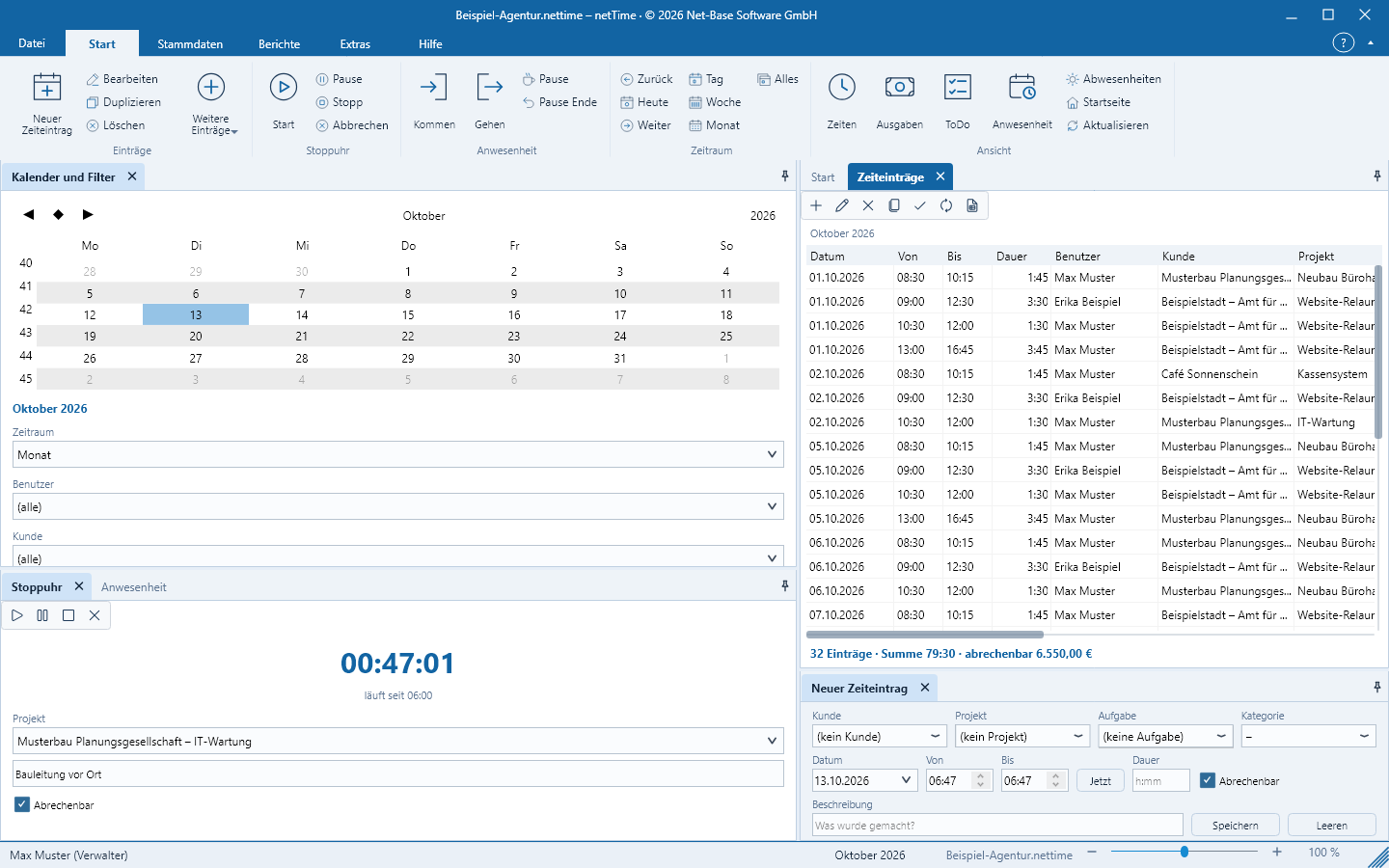
The input area „New Time Entry“
The area at the bottom of the window captures an entry in a single line:
- Customer, Project, Task, Category – the project list shows only projects of the selected customer, the task list only tasks of the selected project.
- Date, From, To – Now sets the current time as the end. If To is before From, the entry ends on the next day (past midnight).
- Duration – alternative to To as
h:mm(for example1:30),1,5or1.5are also recognized. If a duration is entered, it takes precedence; the end is calculated as From + duration. - Billable – preselected according to the option New entry is billable.
- Description – What was done?
- Save or
Enterin the Duration or Description field. Clear resets the fields to today’s date and the current time.
The new entry appears highlighted in the Time entries list. Without a date or without an end and duration, netTime Please enter a date. or Please enter an end or a duration.
The Editor
Start > Entries > New Time Entry (Ctrl+N) opens the New Time Entry dialog; Edit, double-click or Enter in the list opens Edit Time Entry. Customer and project are prefilled from the current filter.
| Field | Meaning |
|---|---|
| User | Who the time belongs to (default: the logged-in user) |
| Category, Customer, Project, Task | Assignment; project and task follow the selection above |
| Date from, Time from, Date to, Time to | Start and end; entries may extend past midnight |
| Duration (h:mm, empty = from/to) | Duration entered manually; what happens to start/end is governed by the duration rule (below) |
| Rate (0 = automatic) | Hourly rate only for this entry; 0 = rate from project, customer or user |
| Description, Note | Short text and longer remark |
| Billable | Counts in billing and amount |
| Approved | Approval by the administrator |
| Invoice number | Reference to the invoice with which the time was billed |
Without a user or date the dialog cannot be closed with OK; if the end is before the start and no duration is specified, netTime The end is before the start.
Duration rule and rounding
Duration changed manually (File > Options > File options …) determines what happens when you enter a duration in the editor that does not match From/To:
- Not allowed – treated like Adjust end
- Change duration only – start and end remain unchanged
- Adjust start – the start is calculated as end − duration
- Adjust end (Default) – the end is calculated as start + duration
When saving, nettime rounds the duration according to the customer rule (Rounding in minutes, Rounding method – see Master data). Without rounding, whole minutes are counted.
Overlap
If Prevent overlapping times is enabled (Default), netTime rejects an entry that overlaps with another entry of the same user: The entry overlaps with 1 existing entries (e.g. 13.10.2026 09:00 Offer) … Correct the times or disable the restriction in Options.
The „Time Entries“ list
Home > View > Times shows the entries for the selected period and filter with the columns Date, From, To, Duration, User, Customer, Project, Task, Category, Description, Billable, Approved, Amount and Invoice. The summary row shows the count, total hours and the billable amount; whether non-billable time is included in the hour total is determined by the option Include non-billable time in totals.
Commands in the toolbar and on the Home tab:
- Duplicate (
Ctrl+D) – creates a copy of the selected entry and opens it in the editor; approval and invoice number are not copied. - Approve / Revoke approval – administrators only; sets or clears the Approved checkmark together with the approver and timestamp.
- Delete (
Del) – after confirmation “… really delete?” - Export as CSV – see Backup, Export and Import.
Timestamps are stored internally in UTC with the offset to local time that applied at the time. Files can thus be exchanged between time zones without hours shifting.