
Record time entries
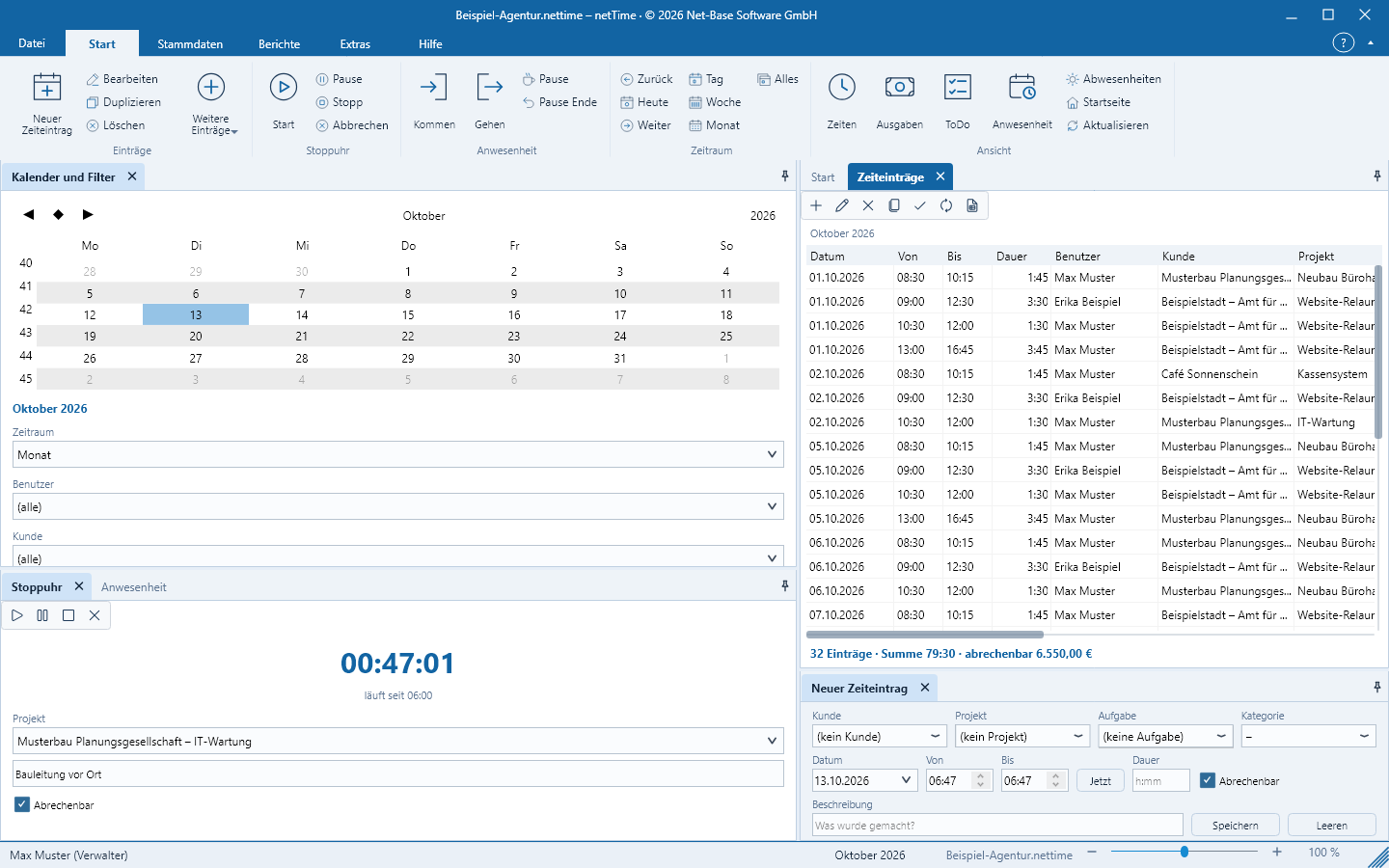
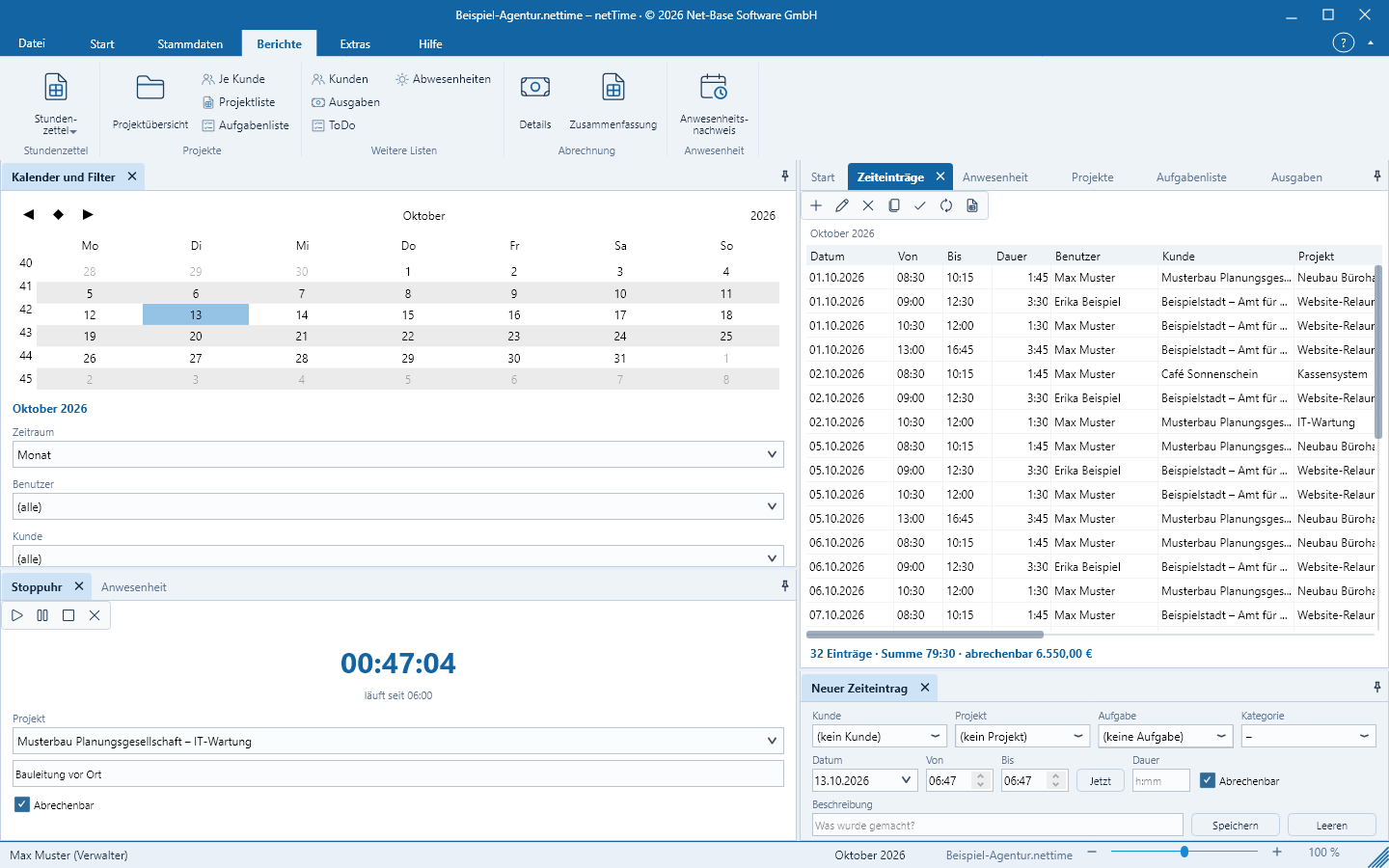
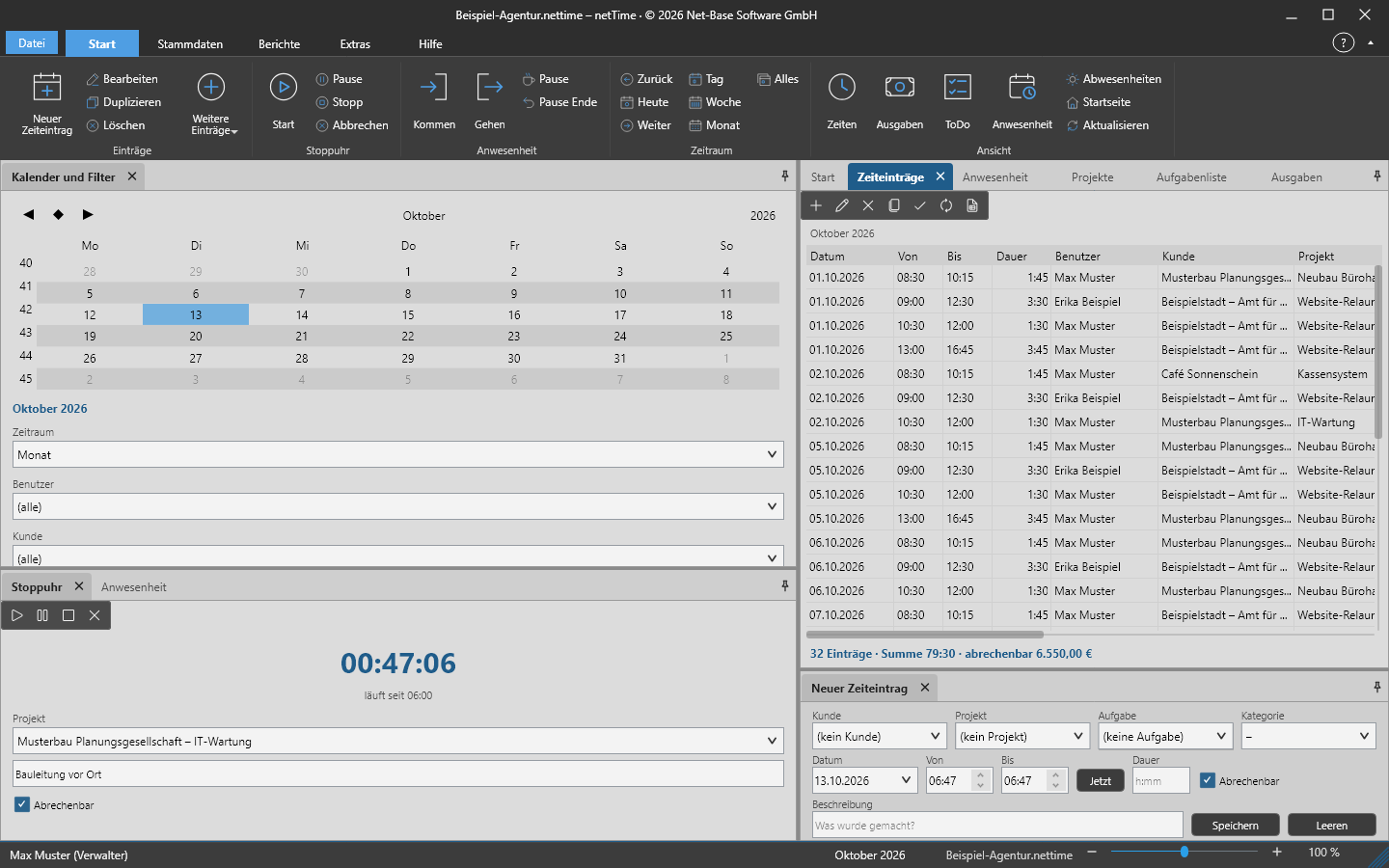
Create an entry in a single line — customer, project, task, From/To or duration as h:mm — or use the detailed editor. Rounding per customer, overlap prevention, duplicate, approve and invoice number.
netTime is the work and project time tracking solution from Net-Base: log times for clients, projects and tasks — manually or with the stopwatch — record arrivals, departures and breaks, manage absences, expenses and tasks, and print timesheets, project summaries, invoices and attendance records.
Registration with a Net-Base account, then test all features free for 30 days; afterwards obtain the license in the Net-Base portal. All data remains in a local .nettime file – no cloud, no server.
Everything for office time tracking
A program for project time tracking, attendance and billing — with the familiar Office-style UI of ribbon, side panes and lists. Date range, user, customer and project filters apply instantly to all lists and reports; F1 opens the help, even without an internet connection.
Create an entry in a single line — customer, project, task, From/To or duration as h:mm — or use the detailed editor. Rounding per customer, overlap prevention, duplicate, approve and invoice number.
Start, pause, stop — when stopped a time entry is created with project and description. The state is saved per user in the file and continues running after closing or restart. Notification after a configurable time limit.
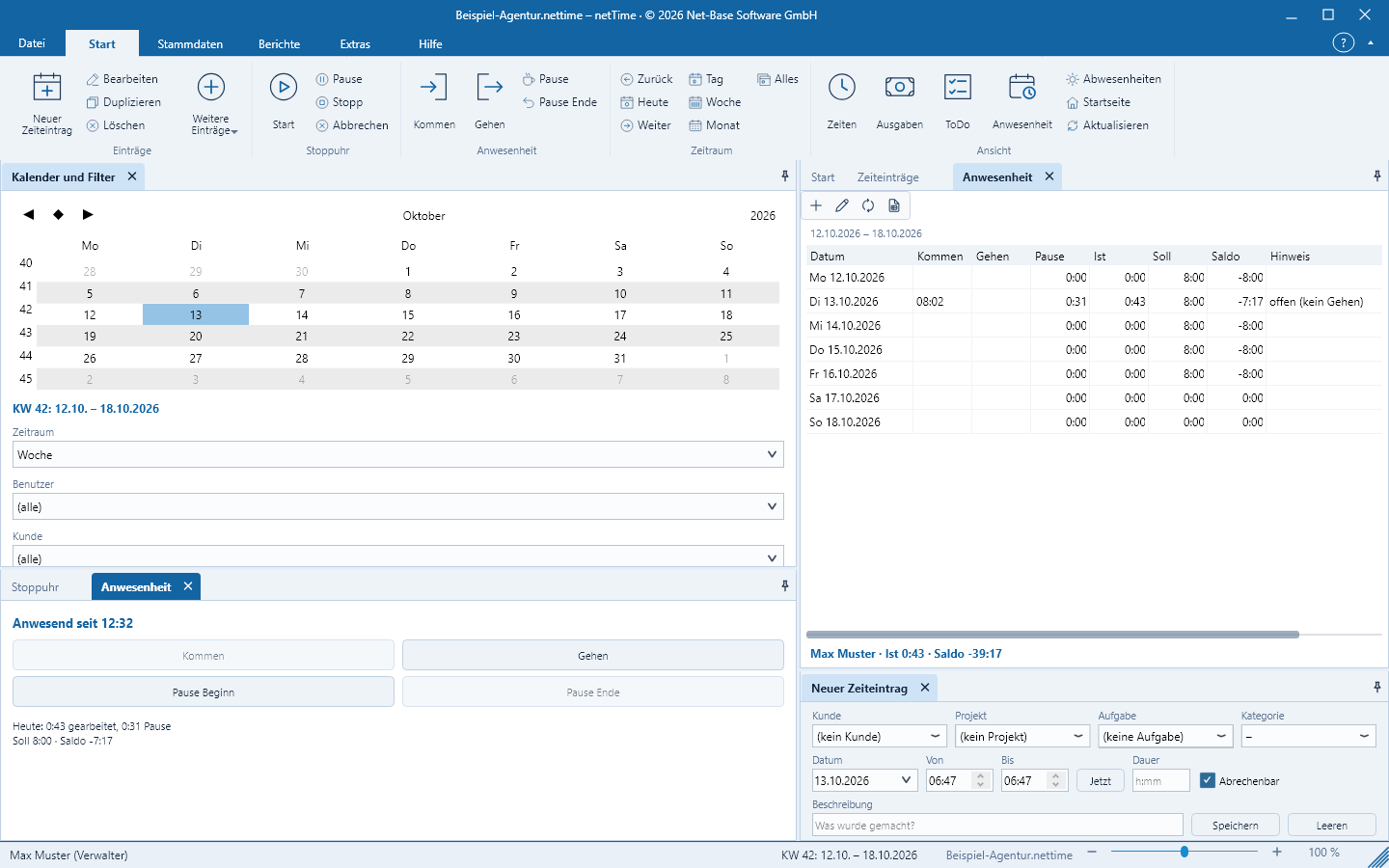
Arrive, leave, pause start and pause end with one click. netTime calculates actual, target and balance per day from the target times per weekday, public holidays and absences — and prints the attendance record.
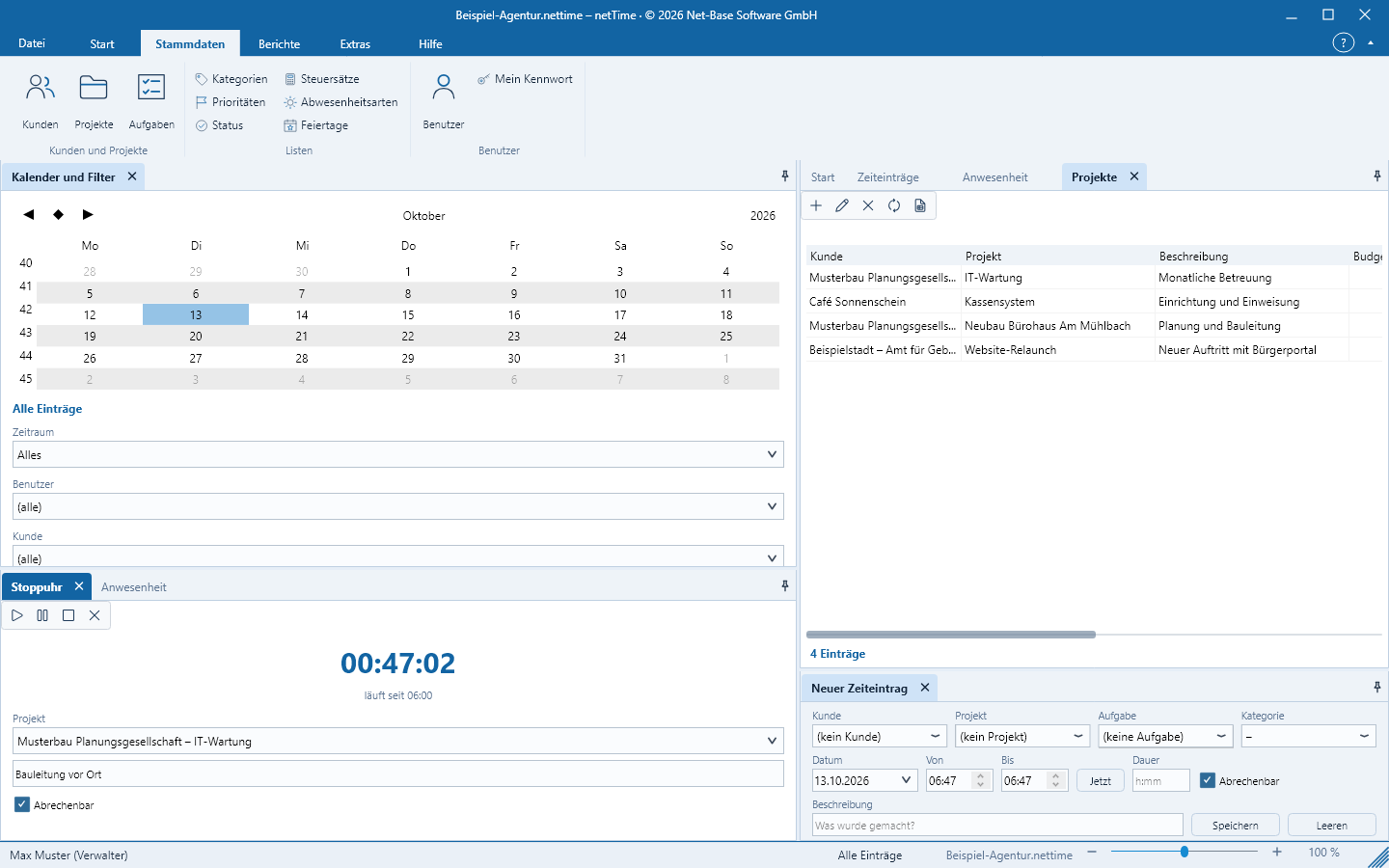
Customers with hourly rate and rounding, projects with budget and consumption, nested tasks, categories, priorities, statuses, tax rates, absence types and public holidays. Hourly rate sourced from entry, project, customer or user.
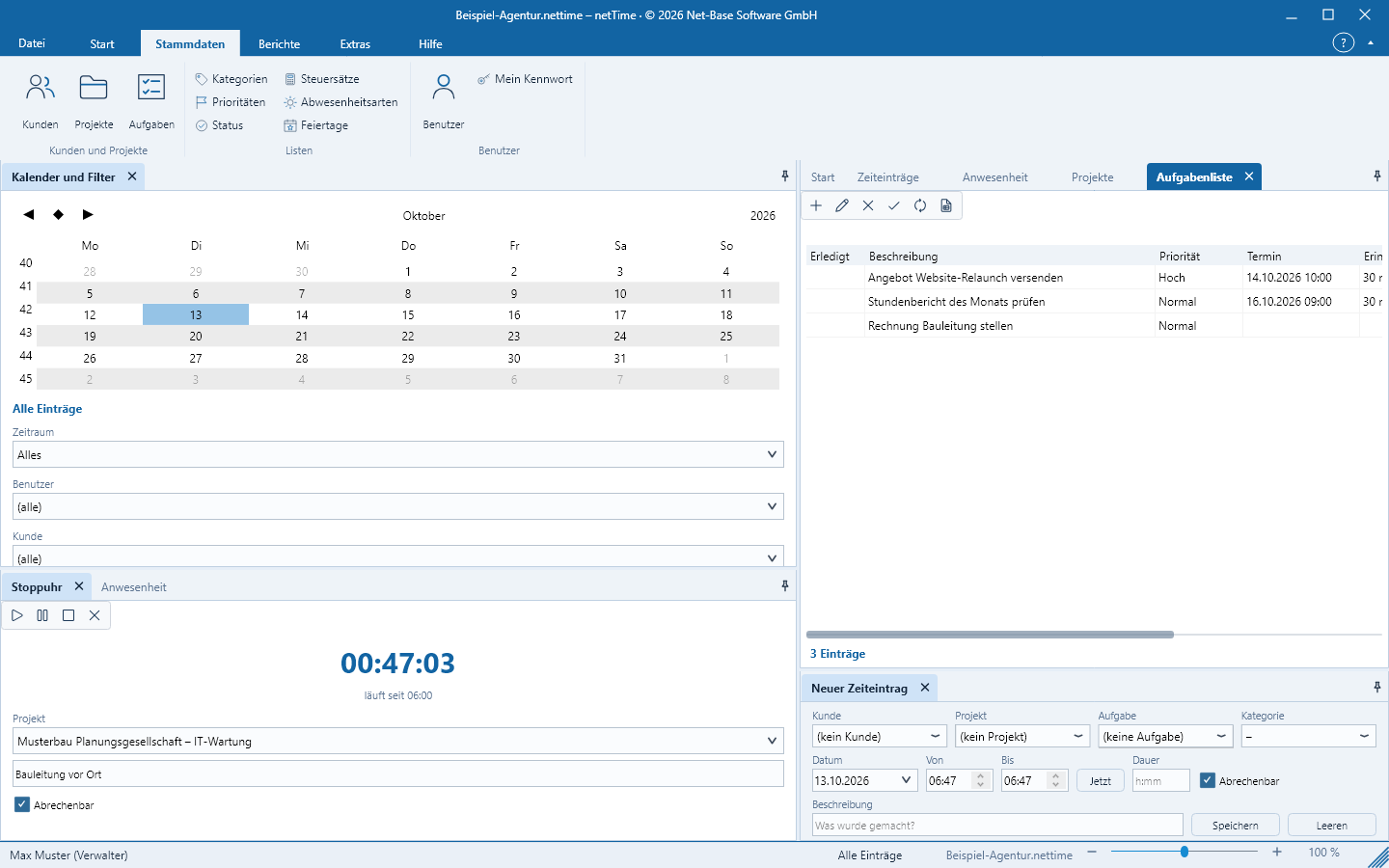
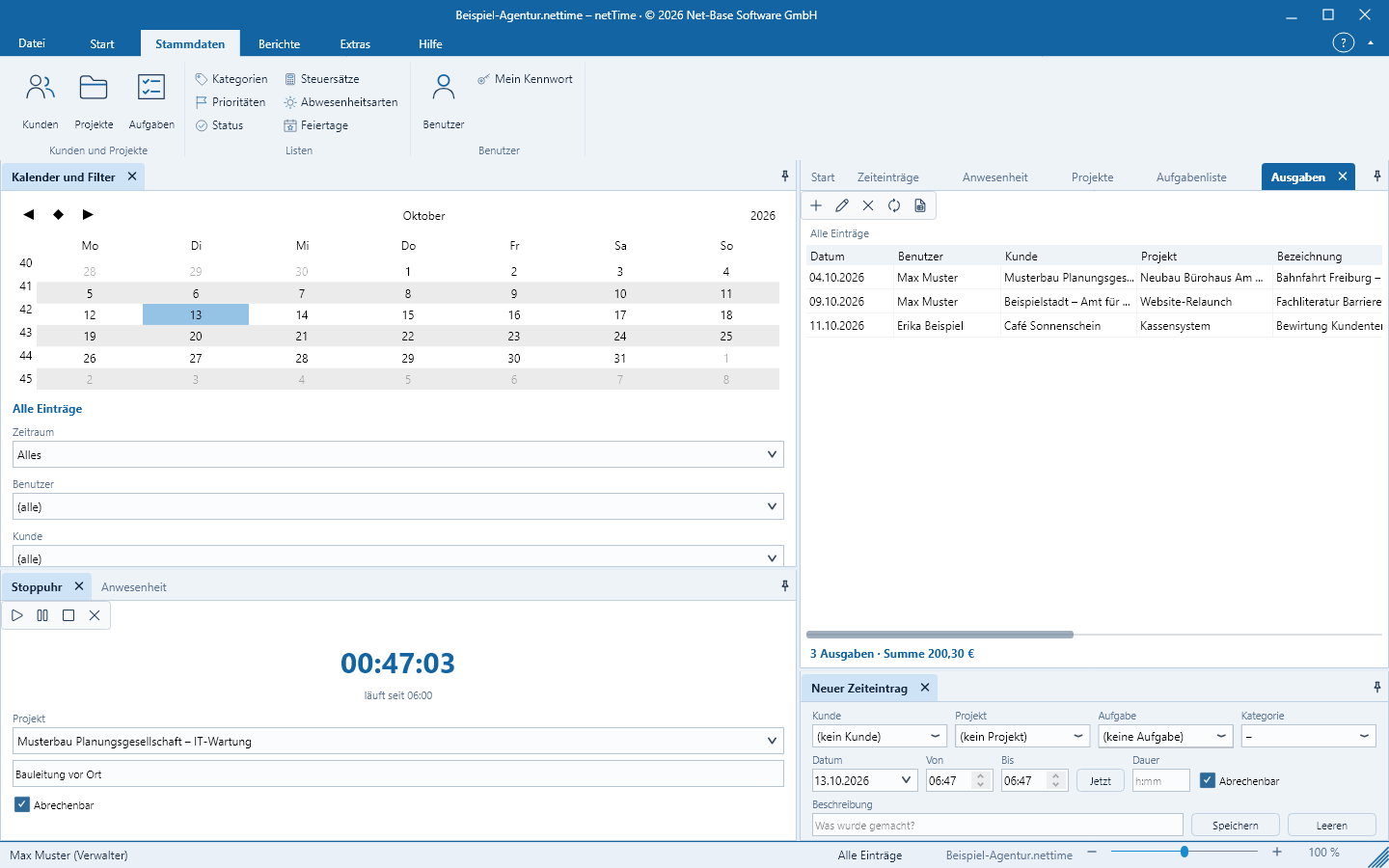
Personal task list (ToDo) with due date, priority and advance reminder. Expenses with receipt, amount, tax rate, billable and approved — assigned to customer and project.
Timesheets overall, per user, customer or project, project overview, billing as detailed and summary, expenses, absences, attendance record. Preview, print and export as PDF, XLSX, CSV, HTML, RTF.
Backup copy during operation, file cleanup, any list as CSV, the entire dataset as JSON for export and import. Before a schema update netTime creates a backup itself.
Working times remain on your computer. Users with roles Administrator, Recorder and Viewer, passwords stored only as a hash, change log in the file and deletion of all data of a person at the push of a button (GDPR).
From time entry to invoice
Each time entry records its hourly rate, whether it is billable, whether it has been approved, and which invoice it was billed with. The billing reports aggregate the hours per client and project — showing the rate and amount per entry, intermediate totals and overall total.
Native on the desktop
netTime is a native desktop application – fast startup, fluid lists, light and dark themes. The file can be exchanged between systems; timestamps are stored in UTC so that hours do not shift between time zones.
Windows 10 and 11, 64-bit. Signed setup, updates directly from the application.
Download64-bit as DEB (Ubuntu, Debian), RPM (Fedora, CentOS, RHEL, openSUSE) or TAR.GZ with installation script.
DownloadApple Silicon, from macOS 14. DMG signed with Developer ID and notarized by Apple.
DownloadActual screenshots
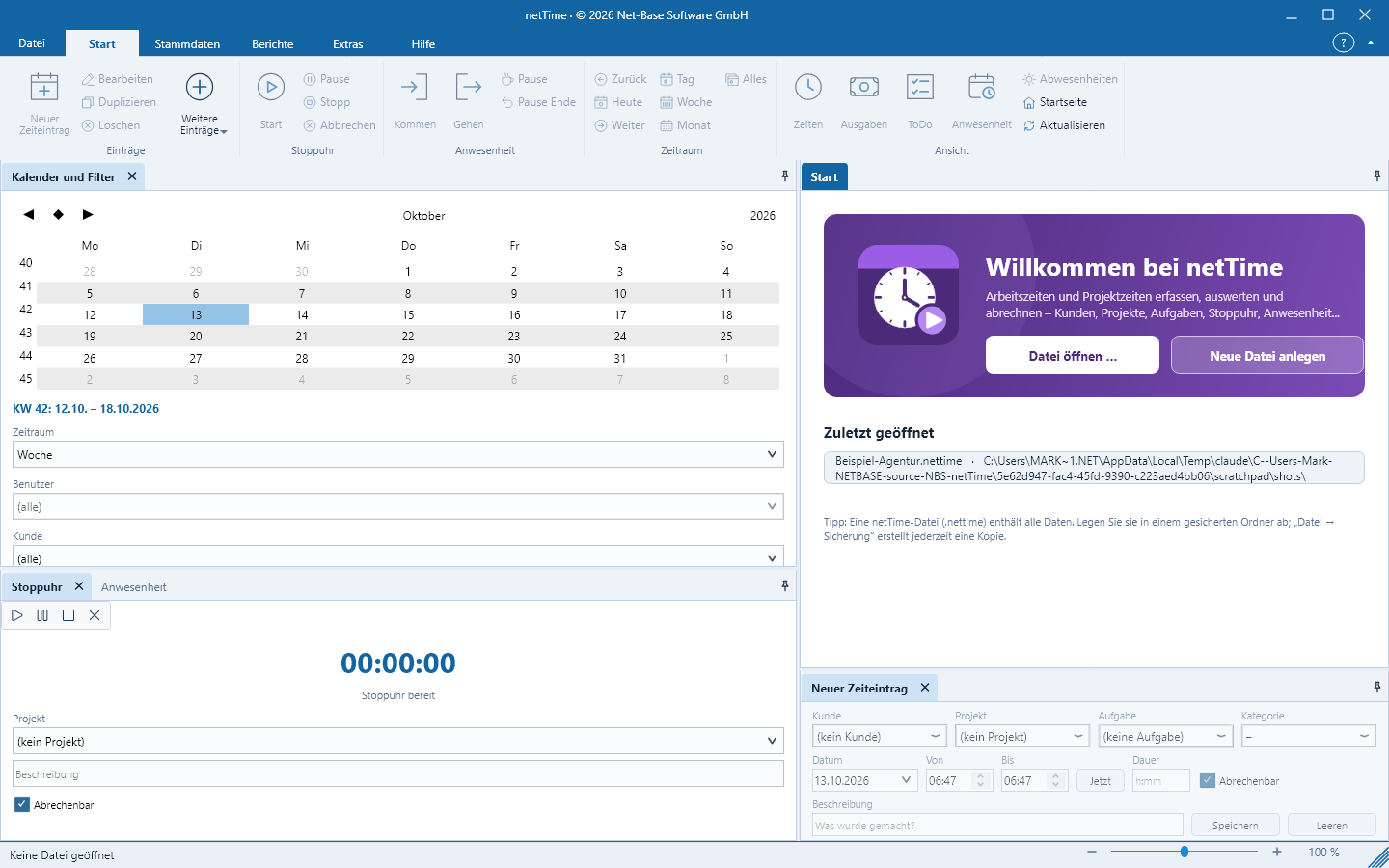
All images are from the current netTime version. Beispiel GmbH, Max Muster and Erika Beispiel are entirely fictitious; no real people or customers are shown.
Trial period and license
Registration takes one minute and starts the trial period. You need a license only if you want to continue using netTime after 30 days.
Download the setup for Windows, the package for Linux or the DMG for macOS and install netTime. On first start create a .nettime file – with defaults for categories, priorities, statuses, tax rates and types of absence.
netTime opens the registration window once with the login page of Net-Base. Sign in or register for free with an email address and password and confirm the link in the email. For security reasons, Google and Microsoft open in the system default browser.
All features are available for 30 days without RESTriction; the remaining time is shown under File > Account. Afterwards purchase the license in the Net-Base-Portal, assign it to your account and click Check again. Without a license netTime remains in read-only mode – your data is preserved.
Frequently asked questions
After installation, register netTime one-time with a Net-Base account. This starts a 30-day trial with all functions – no payment data required. Afterwards you need a license, which you acquire in the Net-Base portal and assign to your account; the terms are shown in the portal. Register additional devices using the same account.
Without a license netTime switches to read-only mode. Your data remain fully intact: open files, view lists, print and export reports, create backups and export CSV or JSON continue to work. Only new entries, the stopwatch and changes to master data and options are blocked. As soon as a license is assigned to your account, netTime lifts the RESTriction when you click „Check again“.
Registration links the trial period and license to your account and enables updates. On first start netTime opens a window with the Net-Base sign-in page: sign in with email and password or register for free; confirm your address via a link. Sign-in with Google or Microsoft opens in your default browser for security reasons. Working times, customers and projects are never transmitted.
In a single file with the extension .nettime on your computer or a network drive – there is no cloud and no server. Only for registration, license verification and updates does netTime connect to Net-Base and transmit installation ID, device fingerprint, program version and platform. Passwords appear in the file only as a hash, and any person can have their data permanently deleted (GDPR).
netTime is available for Windows 10 and 11 (64-bit), for Linux 64-bit as DEB, RPM and TAR.GZ packages, and for macOS on Macs with Apple Silicon as a DMG. The macOS release is signed with a Developer ID and notarized by Apple and launches without additional approval.
Yes. Each netTime file has its own users with the roles Administrator, Recorder and Viewer, a password and target hours per weekday. Multiple people use the same file sequentially, for example on a network drive; Administrators see and approve the times of all users. A network version with a shared server for continuous simultaneous work is planned for later.
16 print-ready reports: timesheets (total, per user, per customer, per project, blank for filling in), project overview, project and task list, customers, expenses, ToDo, absences, billing as detailed and summary, and the attendance record. Each report opens in a preview and can be printed or exported as PDF, Excel (XLSX), CSV, HTML and RTF. Every list can also be exported as CSV, the entire dataset as JSON.
After startup netTime checks in the background whether a new version is available; manually under File > Account > Check for updates. Under Windows „Update now“ downloads the signed setup, verifies origin, size, checksum and signature and installs it. Under Linux and macOS „Open download page“ leads to this page. Files, settings and registration are preserved; a running stopwatch will continue after the update.
Version [nettime_release_version] · 30-day free trial
The download links always provide the currently published version for the selected platform. After installation, register netTime with your Net-Base account and test it free for 30 days; afterwards you need a license from the Net-Base portal.
Note for macOS: The DMG is signed with a Developer ID and notarized by Apple. Open it and drag netTime into the „Applications“ folder; macOS will then start netTime without additional approval.
The Windows setup is signed with the Authenticode signature of Net-Base Software GmbH and a timestamp; the in-program update verifies origin, size, SHA-256 checksum and signature before installing. Linux packages are installed with your system’s package manager – see Installation in the manual.