Getting started with netPDF
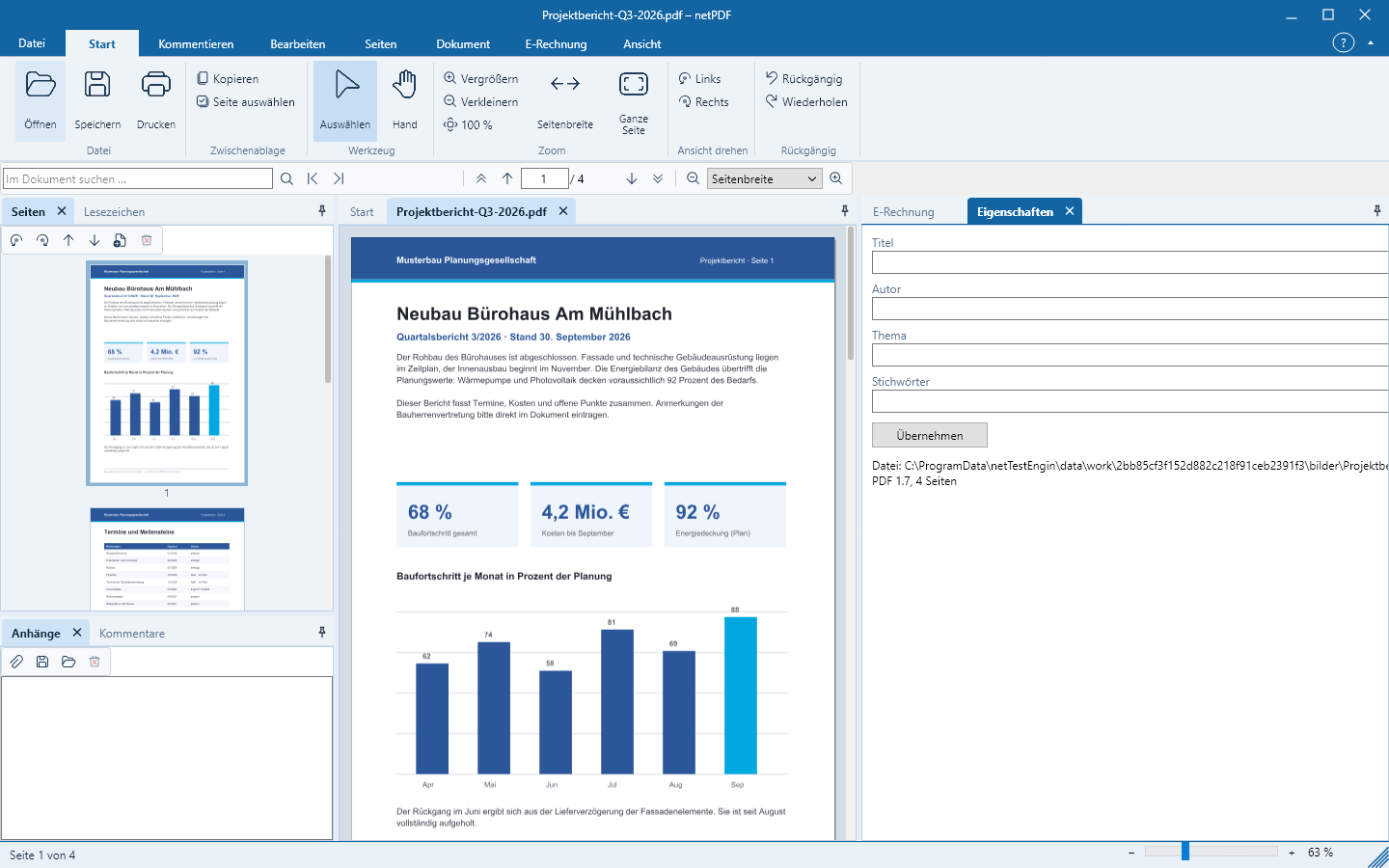
netPDF is structured like an office application: the ribbon at the top, side panes on the left and right, and your documents in the middle.
The start page
With no document open, netPDF shows the start page with the most common tasks – Open PDF, New PDF, Validate e-invoice and PDF/A for archiving – and the recently opened files as cards. A click on a card reopens the file.
Opening documents
- Start → Open or Ctrl+O opens PDF files, XML invoices, images and Office documents.
- Drag one or more files from File Explorer onto the netPDF window. Each file opens in its own tab.
- Use File → New to create an empty A4 document.
The ribbon
The ribbon tabs organize commands by task: Home, Comment, Edit, Pages, Document, Print Production, Sign, E-Invoice and View. Under File you will find Save, Print, Account, Options, About and Exit.
Side panels
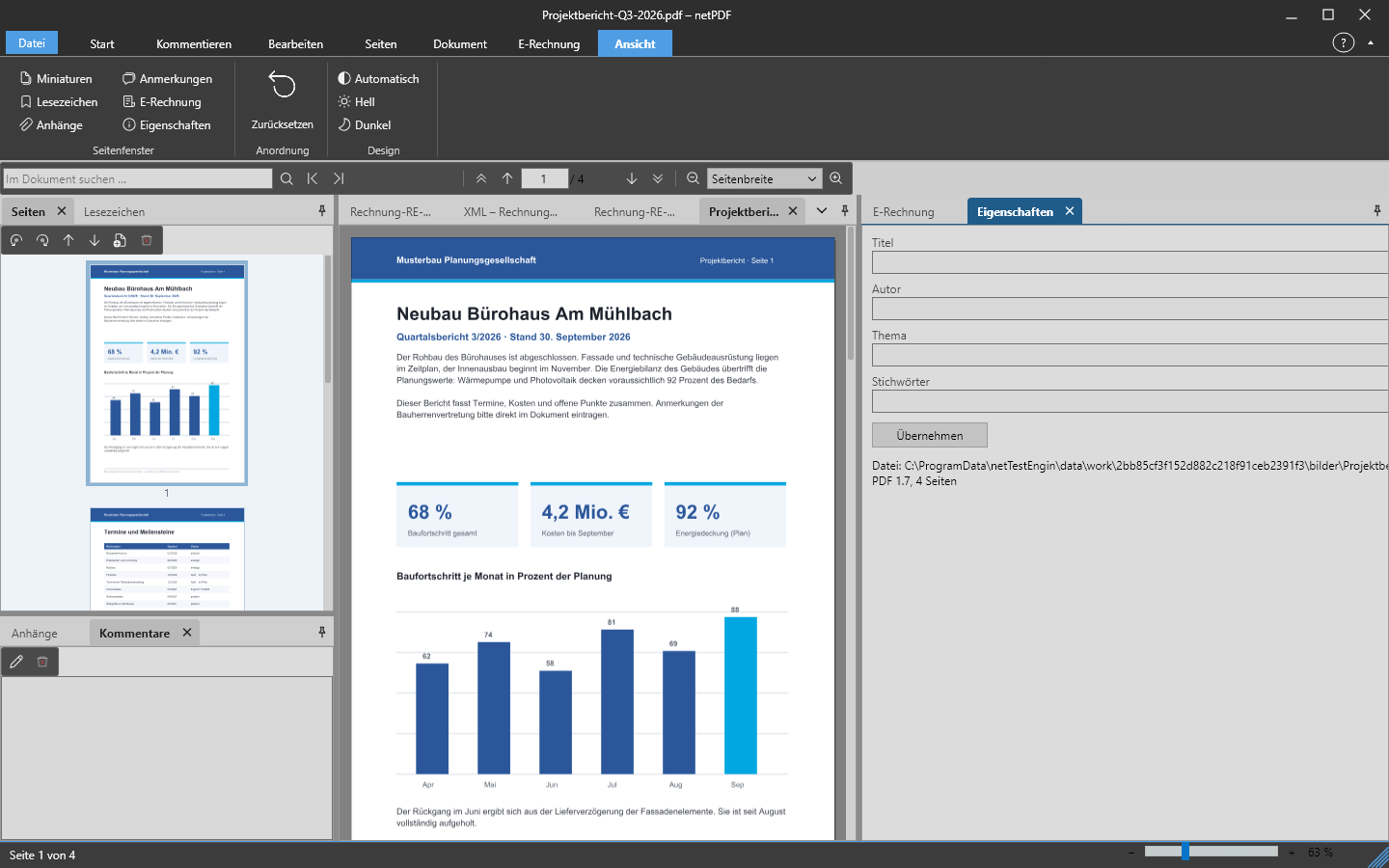
To the left and right of the document are the side panels: Thumbnails, Bookmarks, Attachments, Comments, E-Invoice and Properties. You can move them by their title bar, group them as tabs, collapse them to the edge, close them and reopen them via View → Side Panels. View → Reset restores the original layout.
Light, dark and language
Under View → Theme you choose a light or dark appearance or let netPDF follow the operating system. Set the interface language under File → Options; netPDF is available in 45 languages. Press F1 at any time to open the in-app help.
On Mac you will find Open, Save, Print, Info, Account and Options in the netPDF menu of the menu bar; you can also open Options with ⌘+,. Instead of Ctrl use the Command key ⌘ for all shortcuts, for example ⌘+O to open.
Keyboard shortcuts: Under File → Options → Keyboard Shortcuts you assign each command its own keys – select the command, press the key combination, OK. The defaults match the shortcuts commonly used in PDF programs, for example Ctrl+0 for the whole page, Ctrl+2 for page width and Ctrl+L for full screen; Default restores them.