Create E-Invoice: ZUGFeRD, XRechnung, Peppol
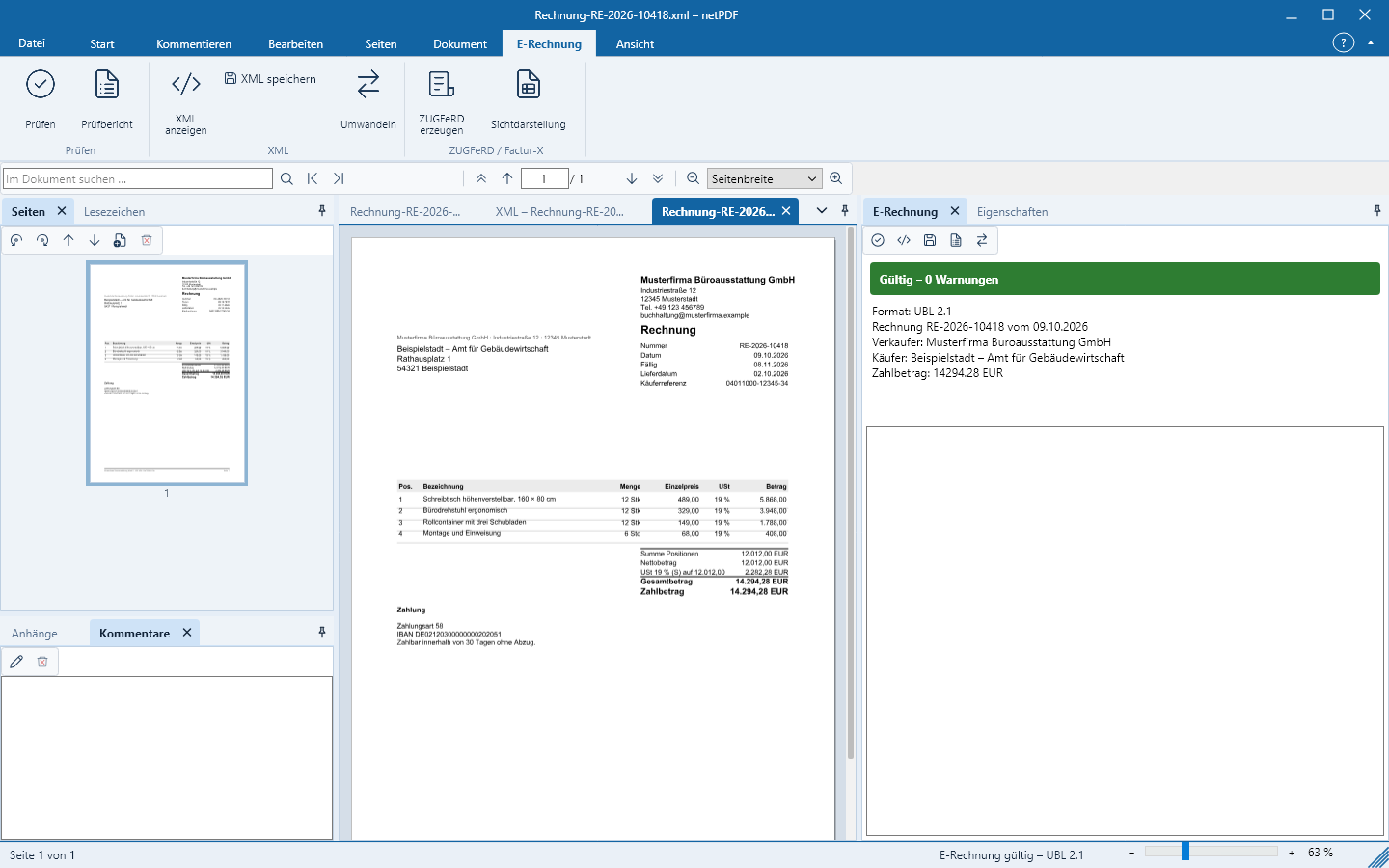
A ZUGFeRD or Factur-X document is a PDF/A-3 that contains the XML invoice as an attachment. netPDF creates it in a single step.
Create a new invoice
E-Invoice → New Invoice guides you through four steps to a valid e-invoice according to EN 16931: header (number, date, routing ID), seller, buyer and line items. netPDF calculates totals and VAT, validates the invoice and can generate XRechnung (CII or UBL), Peppol BIS Billing or ZUGFeRD / Factur-X as PDF/A-3. netPDF can store your seller details for use on subsequent invoices.
From an XML invoice
- Open the XML invoice, for example an XRechnung.
- Click E-Invoice → Generate ZUGFeRD. netPDF creates the visual representation, embeds the invoice as Factur-X and converts the document to PDF/A-3.
- Save the result with Save as.
Embed into an existing PDF
If you already have the invoice as a PDF — for example from your ERP — open that PDF, click Generate ZUGFeRD and select the matching XML file. netPDF validates the invoice and displays the result immediately in the page pane.
Convert formats
Convert transfers the opened invoice into another format, for example from XRechnung UBL to Factur-X EN 16931 (CII) or to Peppol. Edit invoice imports an opened invoice into the four-step workflow, for example for a correction or credit note.
Capture a PDF invoice
E-Invoice → Create → Capture from PDF reads the fields of a standard PDF invoice — locally on your machine, without cloud. netPDF recognises invoice number, date, seller, buyer, line items and totals; clicking a field highlights the source location in the PDF, and with PDF next to a field you mark the correct value directly in the document. Fields outlined in red are missing, uncertain or contradict the calculations. netPDF detects invoices without VAT — small business owner (Kleinunternehmer), reverse charge, intra‑community supply — from the explanatory text and applies the exemption reason. As long as errors remain open, export is blocked. Generate ZUGFeRD asks once whether you have compared everything with the document, saves the result next to the original (Name_ZUGFeRD.pdf or Name_XRechnung.xml) and opens it; target format, output folder and your own company are configured under File → Options → E-Invoice from PDF.
The built-in microAI learns continuously: every confirmed capture and every correction is fed into recognition in encrypted form, and a document template is created for each sender — the same invoice will be correct next time. Only hashed features and templates are stored, no invoice contents. If netPDF recognises an invoice poorly, you can send it to us with Submit PDF ….
Printer “netPDF E-Invoice”
The Windows-setup installs, alongside the printer netPDF, the printer netPDF E-Invoice. Print an invoice from any application to that printer: netPDF recognises the fields and immediately saves the e-invoice in the configured format. If mandatory data are missing or totals do not match, the validation dialog opens instead with the relevant notices.
Sign invoice
Spain (Facturae) and Italy (FatturaPA) require signed e-invoices. E-Invoice → Sign invoice signs an XML invoice with your digital ID (XAdES or CAdES), Verify signature shows the signer and timestamp.