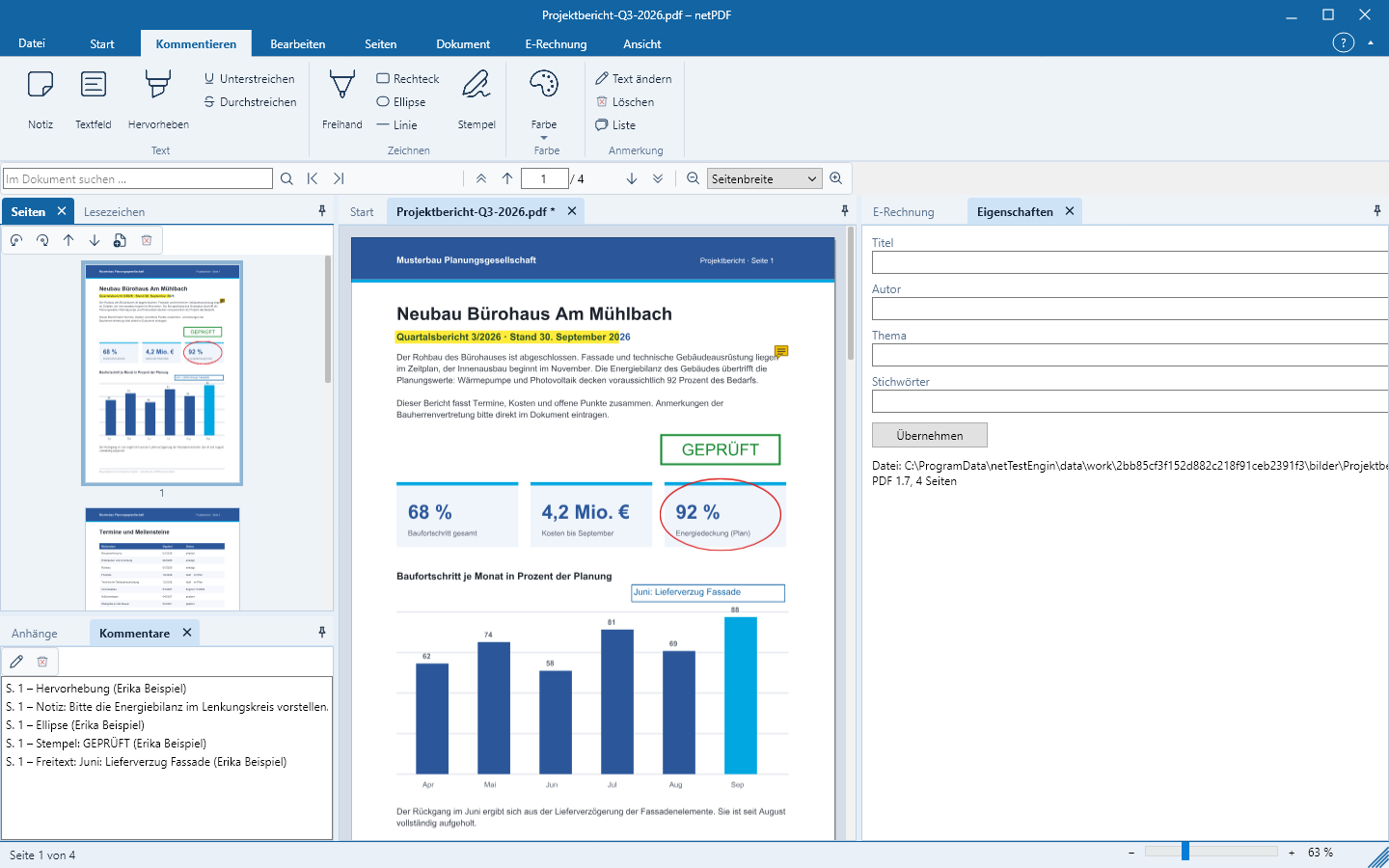
Annotate PDFs: Notes, Highlights, Stamps
Annotations are preserved as separate objects within the PDF and can be read in any PDF application.
Choose color
Select the color for new annotations first under Annotating → Color. The list shows each color with a swatch; More Colors … opens a color spectrum where you can freely set any hue. The color button’s icon shows the selected color. Highlights have their own color, which can also be chosen freely.
Annotate text
- Note: Click at the location, then enter the text. The note appears as an icon.
- Text box: Draw a frame and enter text. The text remains visible on the page.
- Highlight, Underline, Strike-through: drag the mouse across text. If text is already marked with Select, clicking the button takes effect immediately.
- Insert Text and Replace Text add correction annotations with an insertion caret.
Drawing, Measuring and Stamping
- Freehand, Rectangle, Ellipse, Line, Polygon, Cloud and Polyline: draw directly on the page. A Legend points to a location with an arrow.
- Distance and Area measure lengths and surfaces; under Scale you set, for example, 1 : 100 for a blueprint.
- Stamps: GENEHMIGT, GEPRÜFT, ENTWURF, VERTRAULICH, BEZAHLT, ABGELEHNT or a custom text.
Modify, reply, delete
The page panel Comments lists all annotations with page, type, text and author. A double-click on an annotation edits its text, Del deletes it. With Reply and Status (Accepted, Rejected, Completed …) you conduct a vote directly in the PDF. Every step can be undone with Undo (Ctrl+Z).
All comments
Export and Import exchange comments as an XFDF file, for example with other PDF applications. Summarize creates a PDF with all comments per page, Flatten permanently applies them into the pages.