Reading emails and opening attachments
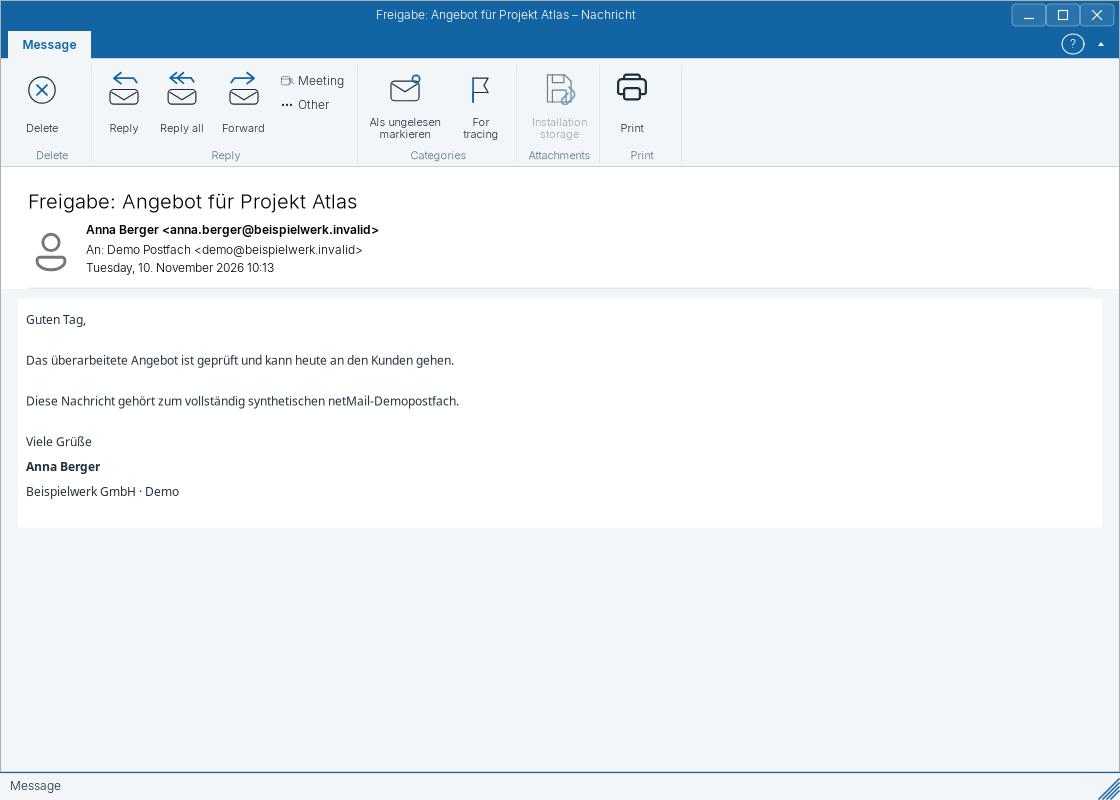
Select a message in the list. The reading pane displays its content and associated attachments.
Opening messages
A single click displays the mail in the reading pane. A double-click opens the message in its own window. Sort by the column headers and use the view that suits your work. For a long subject, the hover hint or the copy function in the context menu can help.
Images and links
External images are only loaded after your consent. The sender may be able to detect a fetch. For unknown messages, read the available text first. Before opening a conspicuous link, the link check shows the destination and description; pay particular attention to the actual domain name.
Attachments
The attachments bar provides Open and Save options. Save a file to a suitable location if you need it permanently. Only open unexpected attachments after you have verified the sender and the purpose. In case of a size or permission message, the mail server’s limits still apply.
Replying, forwarding and deleting
Select the message and choose Reply, Reply All or Forward. Check the recipients before sending. To delete or move messages you can select multiple mails. Changes are synchronized with their original account and folder, even in a combined view.