Composing emails and using signatures
The editor supports formatted text, links, images, attachments and personal signatures.
Compose a new message
- Click New E-mail.
- Enter recipients and subject.
- Click into the large white area and type your message.
- Add images, links or files if required.
- Click Send.
After clicking Send the window closes. netMail creates and sends the message in the background. An activity indicator shows that the handover is still in progress. If an error occurs, the message is preserved.
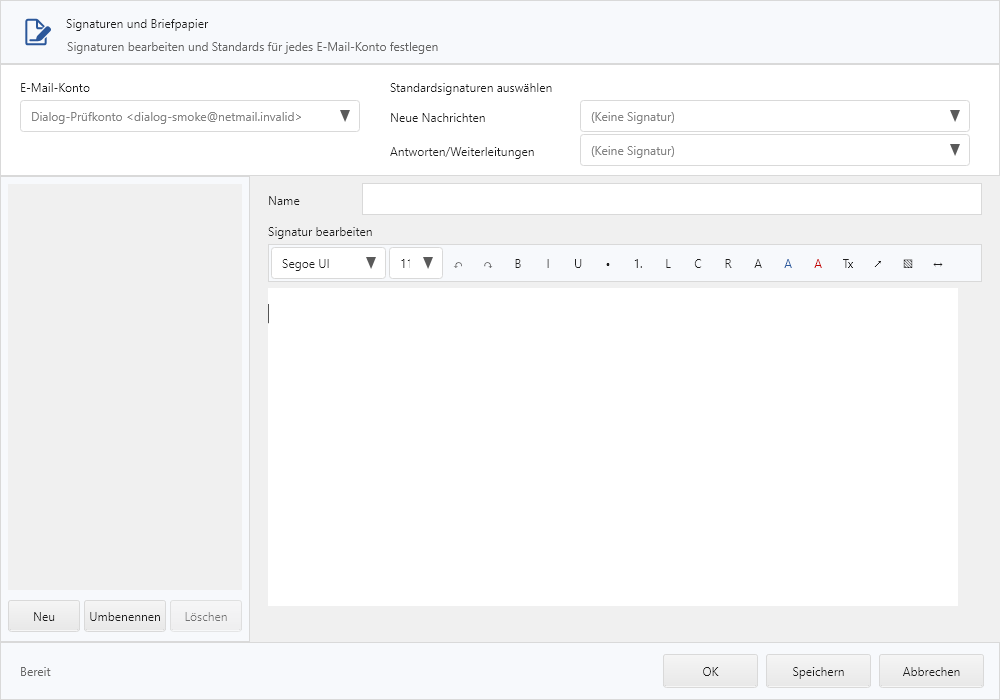
Create a signature
Open File → Options → Signatures. Create a signature and edit text, spacing, links and images in the editor. Then specify for which account it should be used for new messages or replies.
Import an Outlook signature
Select the complete signature in Outlook, copy it and paste it into the netMail editor. netMail preserves text spacing, colors, links and locally readable images. Check the preview once before saving. Images that reside only on an unreachable network drive may need to be reinserted.