Tickets and Email Inbox
The ticketing system integrates email inbox, telephone and tasks with your customers.
The Ticket tab
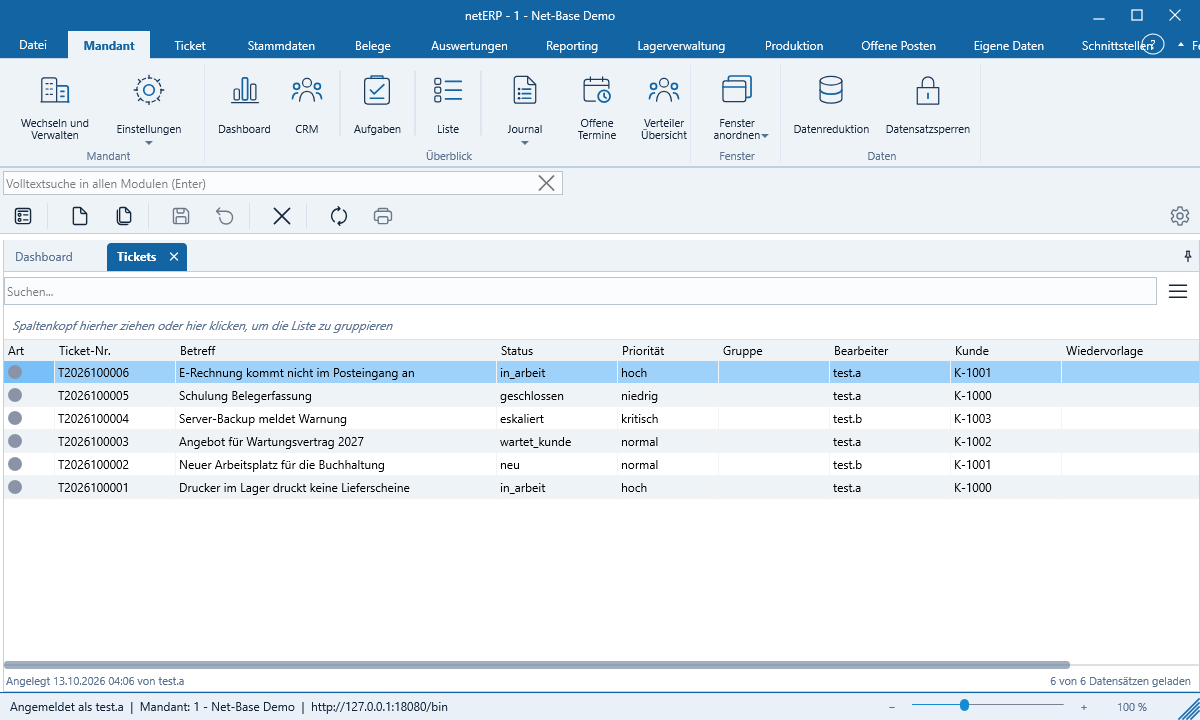
Here you will find New Ticket (Ctrl+T), My Tickets, All Tickets, My Tasks, summaries by status (New, In Progress, Waiting for Customer, Waiting for Appointment, Escalated, Closed), the Inbox and the ticket master data such as status, priorities, types and groups.
A Ticket
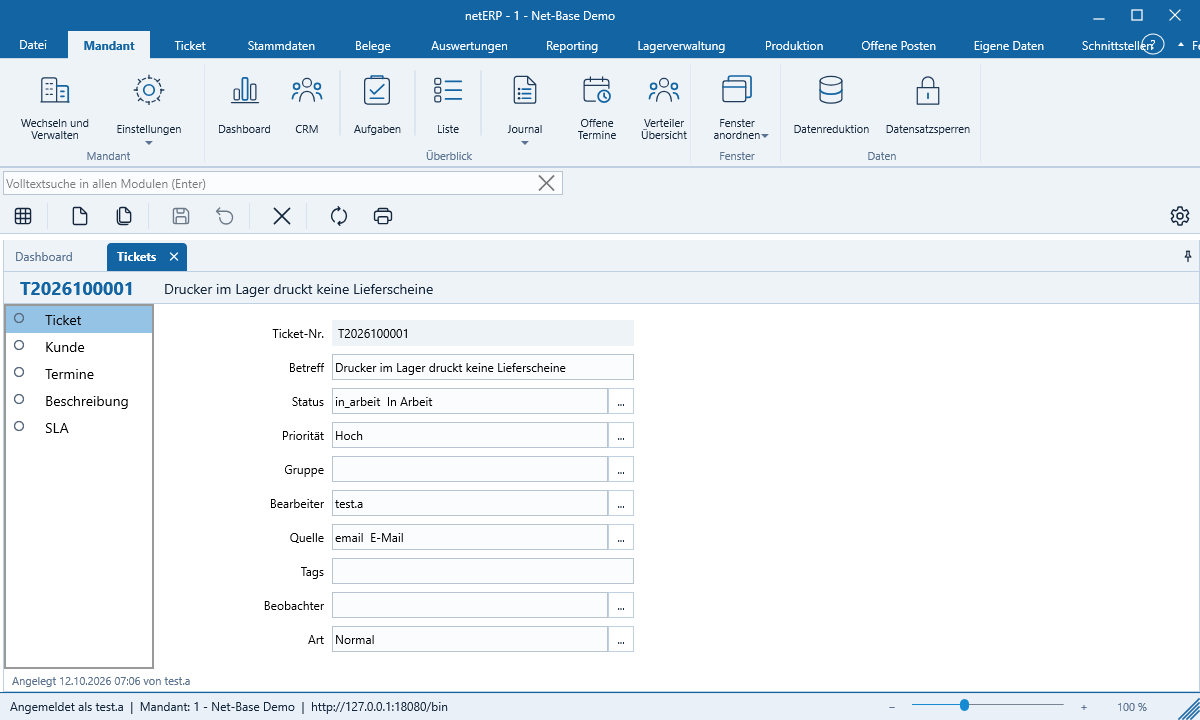
Ticket numbers have the format T2026100001. The ticket form shows an overview with the history displayed as speech bubbles and sections for description, history, tasks, notes, times, emails, attachments and audit trail. Assignee and observers are separate fields. In the list, a colored dot indicates the ticket type.
Set up mailboxes
- Open Ticket → Mailboxes and create a mailbox: server, port, SSL or STARTTLS, folder, polling interval and ticket group.
- Check the settings with Test mailbox. For an internal certificate, netERP will ask whether you trust it.
- With Create tickets automatically, each new e-mail becomes a ticket.
The server polls the mailboxes regularly. If the subject contains a ticket number, netERP attaches the e-mail to the ticket; a closed ticket will then be reopened to ‚in progress‘. Automatic out-of-office replies are ignored.
The inbox
The inbox (Ctrl+M) works like an e-mail client: mailboxes on the left, messages with search and filter in the center, and the reading pane with attachments on the right. External images are only loaded after clicking Download images; you can approve trusted senders. Use Create ticket, Open ticket and Ignore to process messages.
Replying with templates
There are e-mail templates for receipt confirmation, reply, information, closure and reminder, optionally per ticket group. Placeholders such as {ticket_number}, {contact_name} and {signature} are filled in by netERP. The ticket number is automatically included in the subject; messages are sent via the ticket group’s relay server and every send appears in the sent items.
Calls
Under Windows you connect your telephone system via File → Options → Telephony (TAPI). On an incoming call, netERP shows the identified contact and their open tickets; a click creates a new ticket or a note. Telephone systems without TAPI can invoke netERP via a neterp://anruf link.