Getting Started with netERP
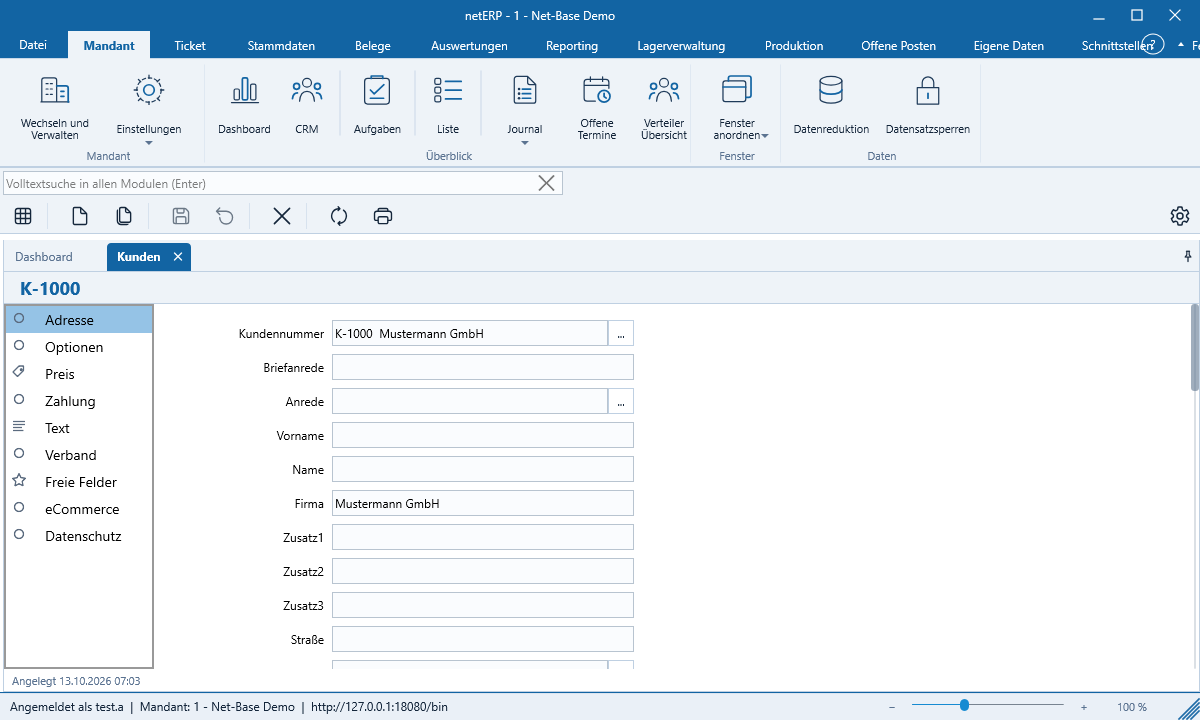
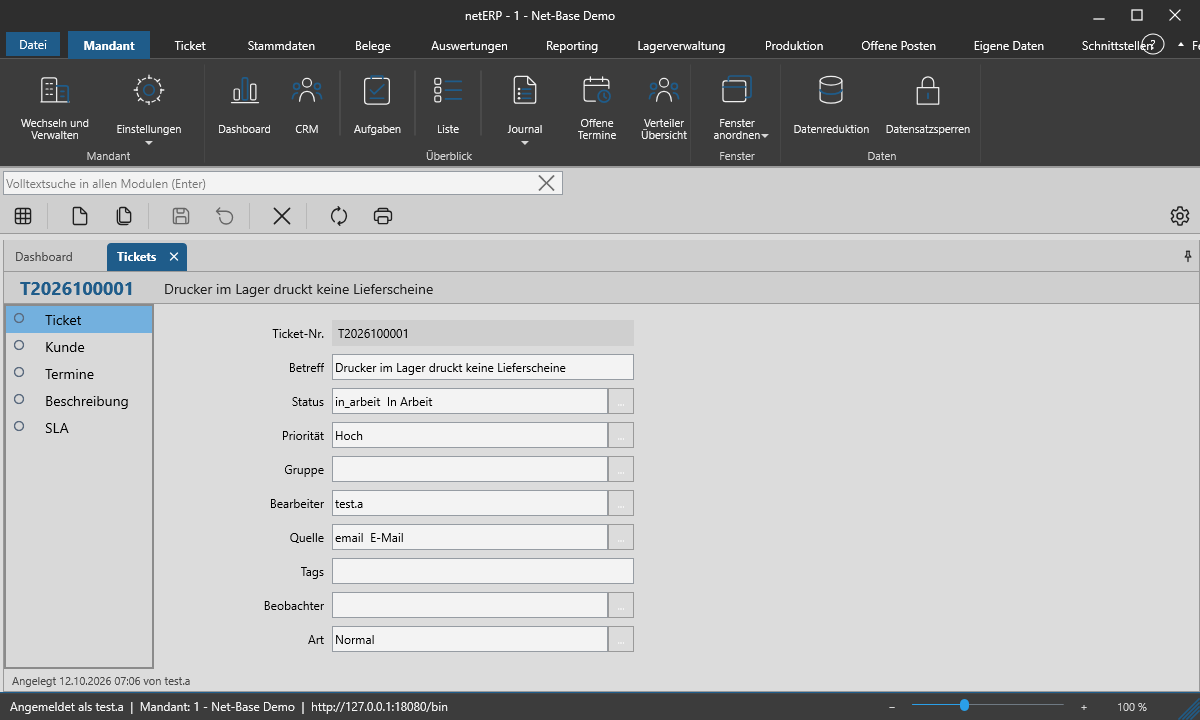
netERP is structured like an office application: the ribbon at the top, with your open modules shown below as tabs.
The ribbon
The tabs organize modules by purpose: Client (Dashboard, CRM, Journal, Clipboard, Windows), Ticket, Master Data, Documents, Reporting and others. A click opens the module as a tab.
Dock modules
Each module is a tab. Drag a tab to an edge to dock it alongside others; a double-click or dragging it out makes it a separate window, for example for a second monitor. Ctrl+W closes the tab. Client → Arrange windows re-docks all windows or resets the layout. netERP remembers open modules and their layout for you.
List and form
Each module displays a list and a form for the individual record. F6 switches between the two. The button bar offers Add, Copy, Save, Reset, Delete, Refresh and Print. On the left in the form, the section menu leads to the areas of the record; the footer shows who created and modified it and when. Required fields carry a red star.
The Dashboard
The dashboard (F4) shows tiles: modules, web links, KPIs, short lists or text. In edit mode you drag tiles into position; a double-click opens the tile settings. A tile is visible either only to you or to all users.
Language, theme and display size
- File → Options → Language: System language, German, English, French or Spanish; the choice takes effect after a restart.
- File → Options → Theme: Automatic, Light or Dark.
- The zoom slider at the bottom right sets the display size between 50 and 200 percent.
Important keyboard shortcuts
F2 New · Ctrl+F2 Copy · Ctrl+S Save · Ctrl+F9 Discard · Ctrl+Del Delete · Ctrl+P Print · F5 Refresh · F3 List search · Ctrl+F Full-text search · Ctrl+T New ticket · Ctrl+M Inbox. Under File → Options → Key mapping you assign your own keys.